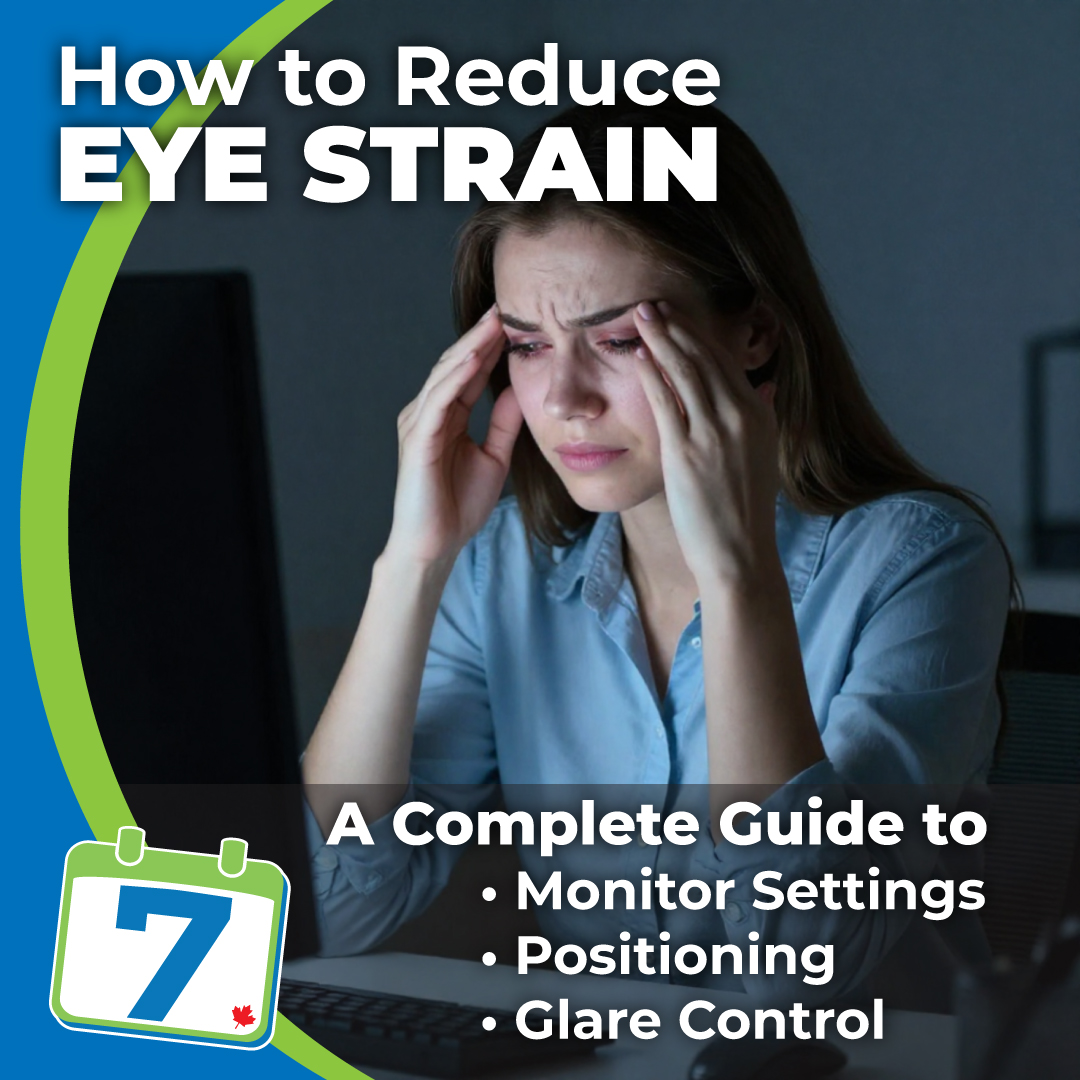

Digital eye strain has become one of the most common workplace complaints, especially among those who spend long hours in front of screens. However, it is not a new issue; it has affected computer users for nearly 50 years. From the video display terminals (VDTs) of the 1970s and the CRT monitors of the 1980s and 1990s to the LCD displays of the 2000s, each generation of technology has brought similar challenges. Today, in our modern digital era, we have essentially picked up where earlier technologies left off—only now, with increased screen time, digital eye strain has become even more widespread.
Fortunately, improving your monitor setup, lighting, and positioning can dramatically increase comfort and reduce visual fatigue.
Below is a practical guide covering everything from screen size and distance to glare control, display settings, and monitor technology.
1. Choose the Right Monitor Size & Viewing Distance
Your screen size determines the ideal viewing distance and influences how hard your eyes must work to stay focused.
Recommended Viewing Distances
- 27–32″ monitors: approximately 20–30 inches away
- 34–38″ ultrawide monitors: approximately 28–36 inches away
- A simple rule: place the monitor about an arm’s length away
Optimal Eye Level
- Your eyes should naturally rest on the top third of the screen
- Tilt the monitor slightly upward so you are looking slightly downward at the center
This avoids unnecessary refocusing and reduces strain on both your eyes and neck.
2. Reduce Glare for Instant Eye Relief
Glare is one of the biggest contributors to eye strain and one of the easiest to fix.
Common Glare Sources
- Windows directly behind the monitor
- Windows behind you, causing reflections
- Bright desk lamps shining onto the screen
Ways to Reduce Glare
- Rotate the monitor slightly away from light
- Close curtains or blinds
- Move or reposition bright desk lamps
- Add a matte screen protector if needed
Reducing glare often delivers immediate relief.
3. Adjust Display Settings for Long‑Hour Comfort
Many people experience eye strain simply because their display settings aren’t optimized. Small adjustments make a big difference.
Brightness
- Match monitor brightness to the room environment
- The display should not be the brightest thing in the room. Using a bright monitor in a dark room is not recommended.
- For most environments, we recommend your monitor’s brightness setting be around 30% to 50%, and a contrast setting of 70% to 80%. We encourage you to experiment with these settings and find the right ones for you. If you’re using multiple monitors, the results could vary between your monitors, and you may have varying results even when they’re the same brand.
Resolution
Use the monitor’s Recommended resolution:
- Open Display settings
- Go to Display resolution
- Select the option labeled (Recommended)
- Click Keep changes
Refresh Rate
- 60 Hz: standard
- 75–100 Hz: better for reducing fatigue
- 120 Hz: ideal for smoother scrolling and reduced motion blur
Text Size & Clarity
- Increase text size to 125% or 150% if text feels too small
- Turn on ClearType text:
- Press Windows key → type ClearType
- Select Adjust ClearType text
- Keep it On and follow the steps
4. Reduce Eye Fatigue by Controlling Blue Light
Blue light isn’t harmful, but it can feel harsh, especially later in the day.
Enable Windows Night Light
- Toggle Night light under Display settings
- Adjust Strength to a comfortable warm level
- Optionally schedule it from sunset to sunrise
If on Mac, Enable Night Shift
- Click the Apple menu in the top-left corner
- Select System Settings (or System Preferences on older Macs)
- Click Displays
- Select Night Shift
- Turn it on by choosing a schedule:
- Sunset to Sunrise (automatic based on location), or
- Custom (set your own times)
- You can also adjust the color temperature slider to make the screen warmer or cooler.
Hardware-Based Blue-Light Reduction
Some monitors have built‑in blue‑light filtering that doesn’t distort color.
If you’re not comfortable going through your monitor’s settings, give us a call and we can assist you.
6. Bonus Tips to Keep Your Eyes Comfortable All Day
Additional Eye-Friendly Habits
- Follow the 20–20–20 rule: Every 20 minutes, look at something 20 feet away for 20 seconds
- Blink more often: Screen work can reduce blinking by up to 60%
- Use proper posture:
- Sit upright with relaxed shoulders
- Keep feet flat on the floor
- Control room lighting:
- Avoid harsh overhead lights
- Use soft, indirect lighting or bias lighting behind the monitor
- Consider anti‑glare glasses if you are sensitive to reflections
- Signs that you should seek an eye care professional
- Persistent headaches
- Blurry vision
- Burning or dry eyes
Final Thoughts
In my experience, eye strain is usually caused by environmental and setup factors — not by your eyes themselves. By optimizing monitor position, lighting, display settings, glare control, and blue-light reduction, you can create a workspace that stays comfortable all day.
If you’re interested in a monitor with built-in eye care technology or would like to have your current monitor(s) configured and setup properly for you, All Seven IT’s on-call support team is always happy to help.